Send Inquiry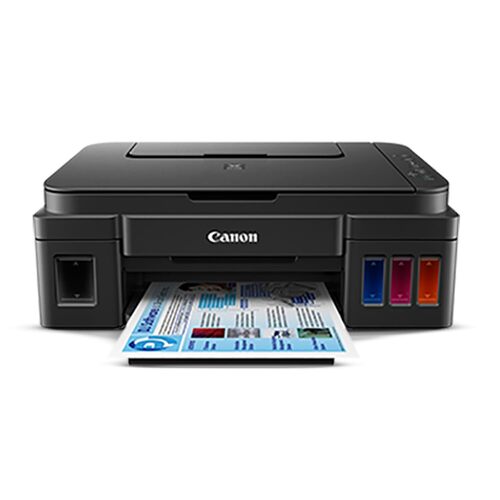
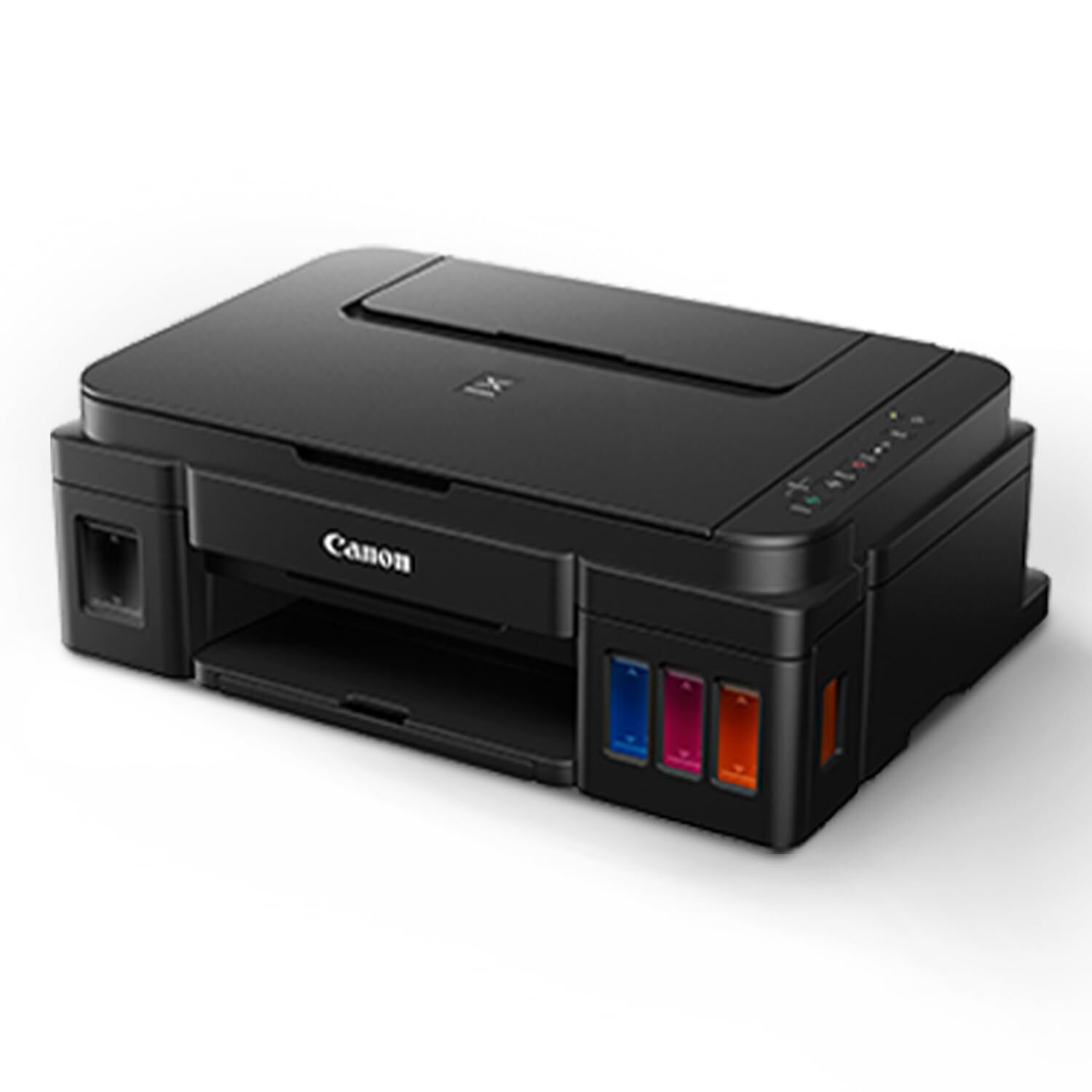
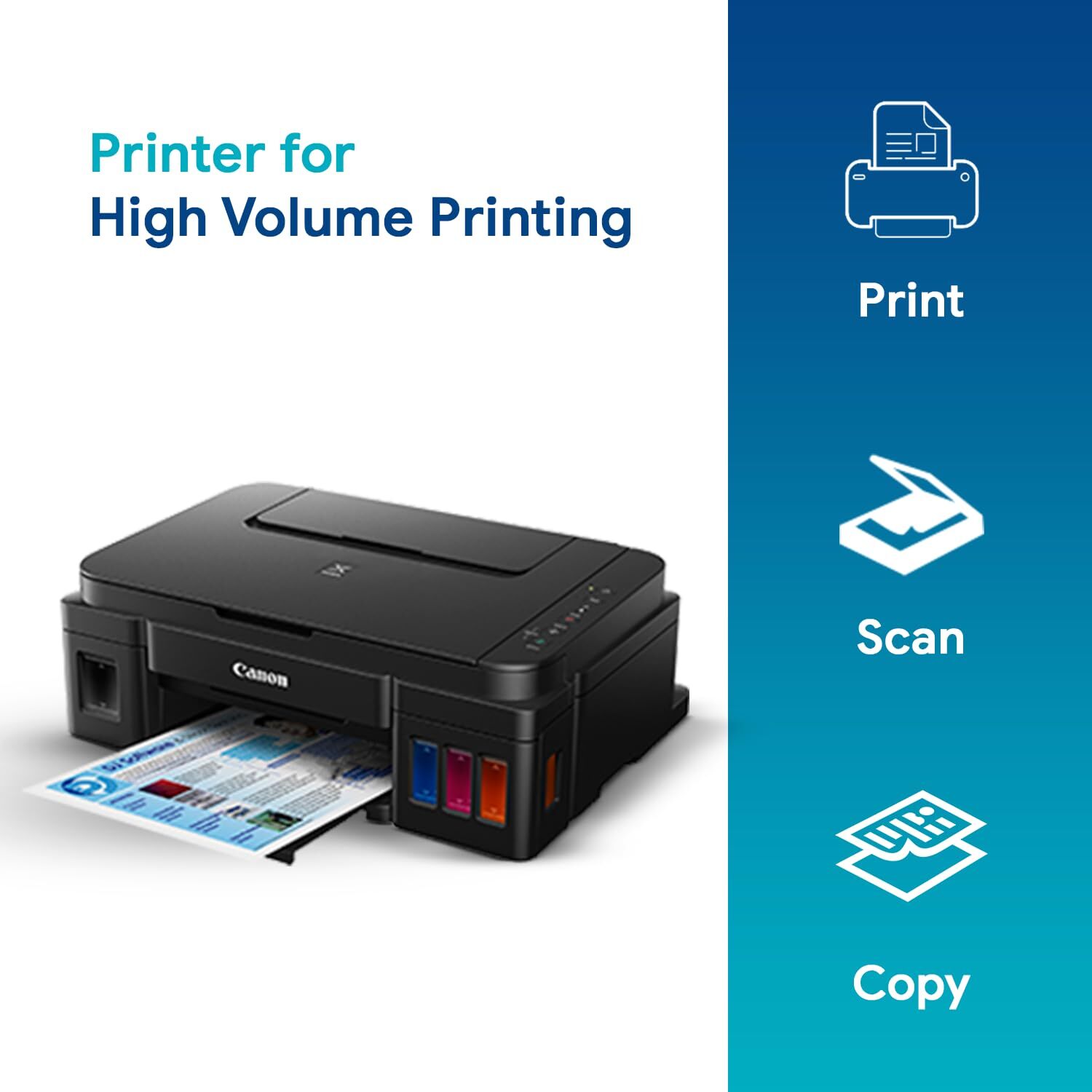
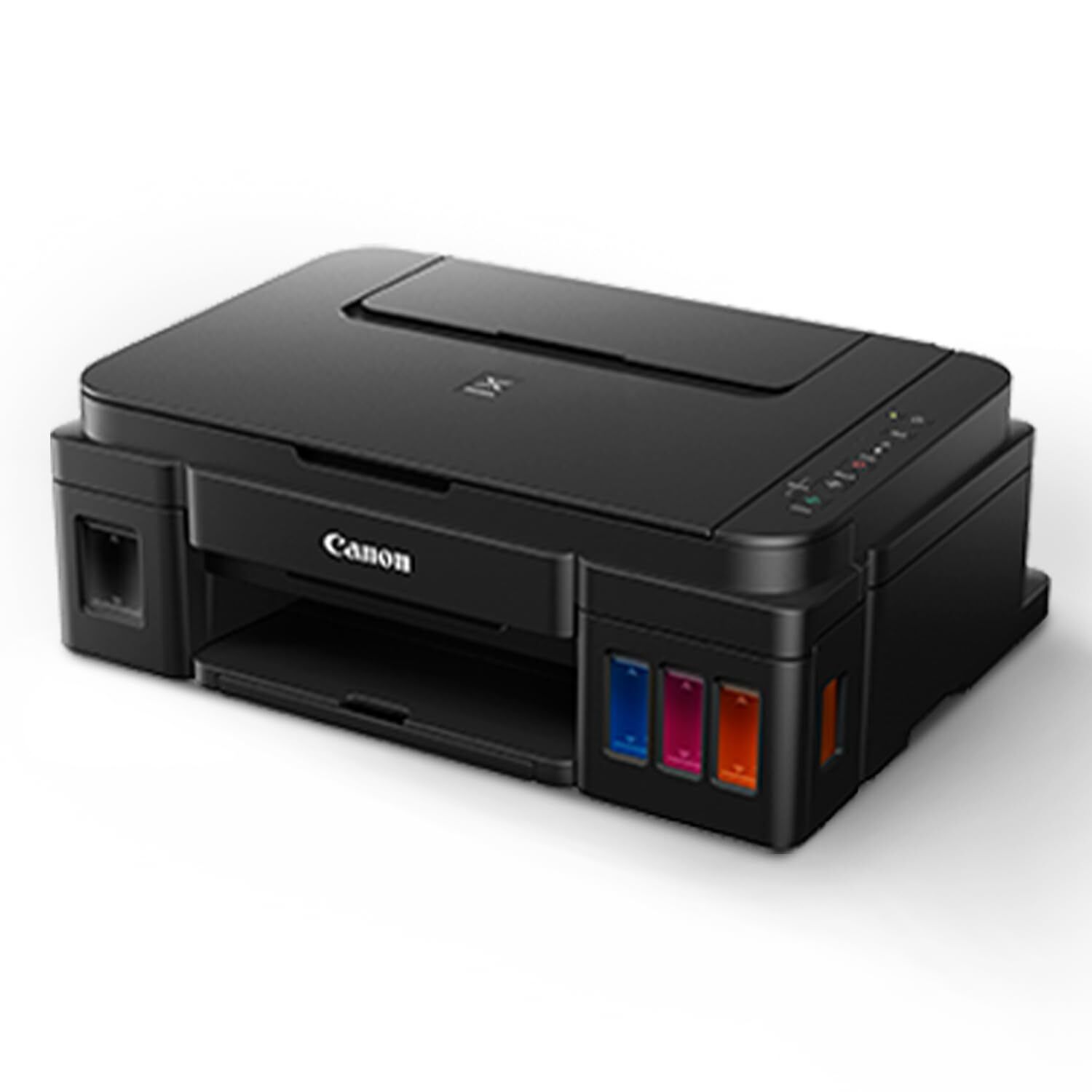

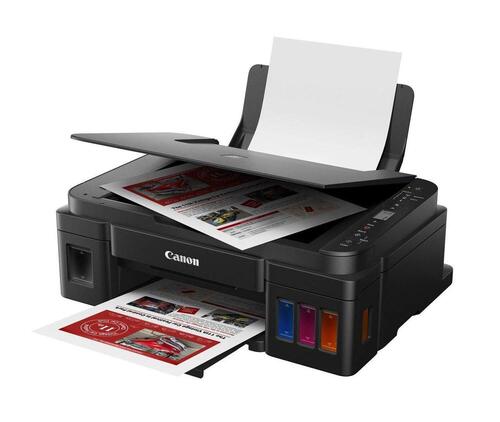
PIXMA G3000 PRINTER
Product Details:
- Interface USB 2.0 High-Speed, Wi-Fi IEEE802.11b/g/n
- Working Temperature 5C - 35C
- Humidity % 10% 80% RH (no condensation)
- Power Supply Internal AC
- Processor Speed On-demand
- Cabinet Material Plastic
- Weight 5.8 kg
- Click to View more
PIXMA G3000 PRINTER Price And Quantity
- 18295 INR/Piece
- 1 Piece
PIXMA G3000 PRINTER Product Specifications
- 4800 x 1200 dpi
- AC 100-240V, 50/60Hz
- 5.8 kg
- Approx 53 dB(A)
- 445 x 330 x 163 mm
- A4
- Plastic
- Internal AC
- Semi-Automatic
- Max. 11W
- On-demand
- New
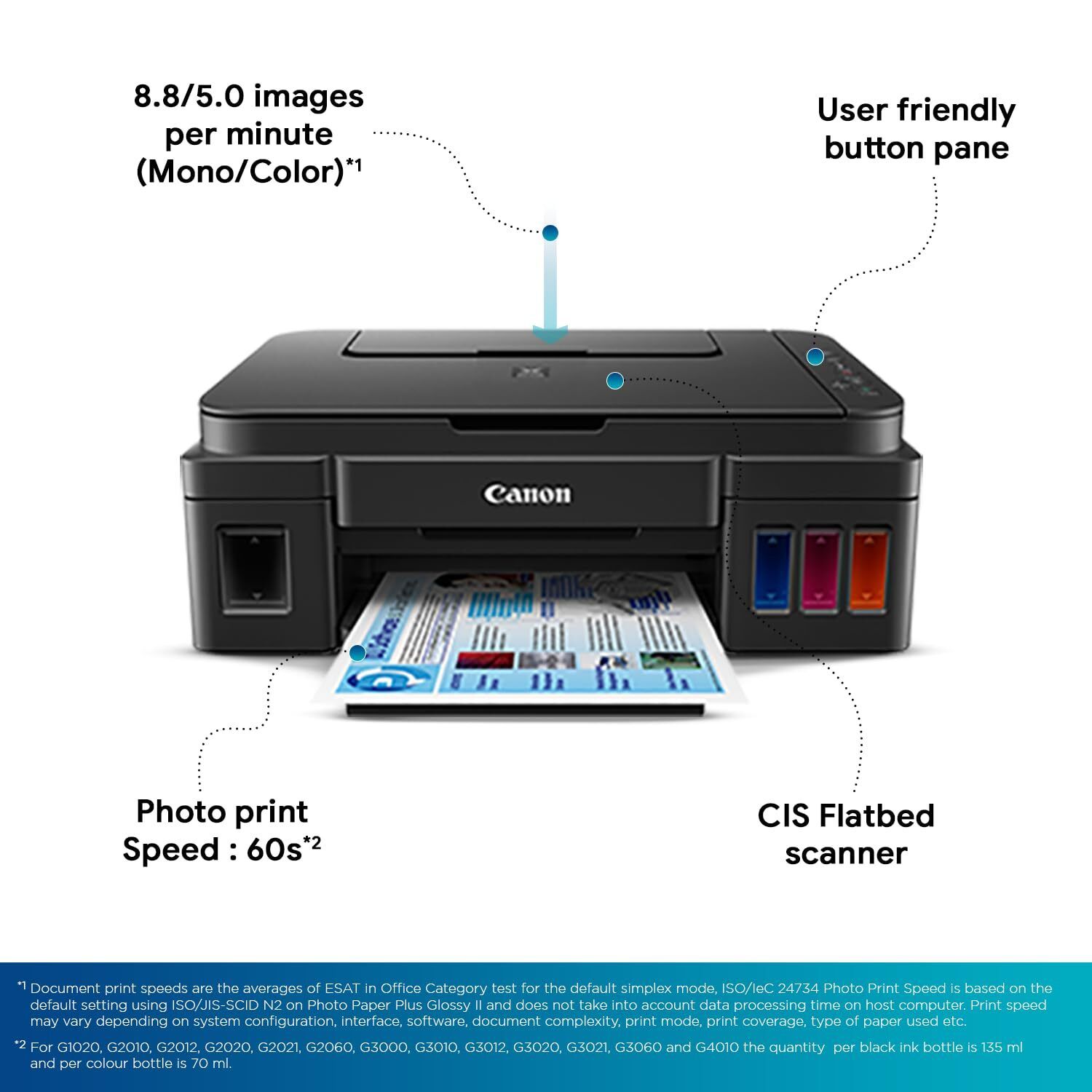
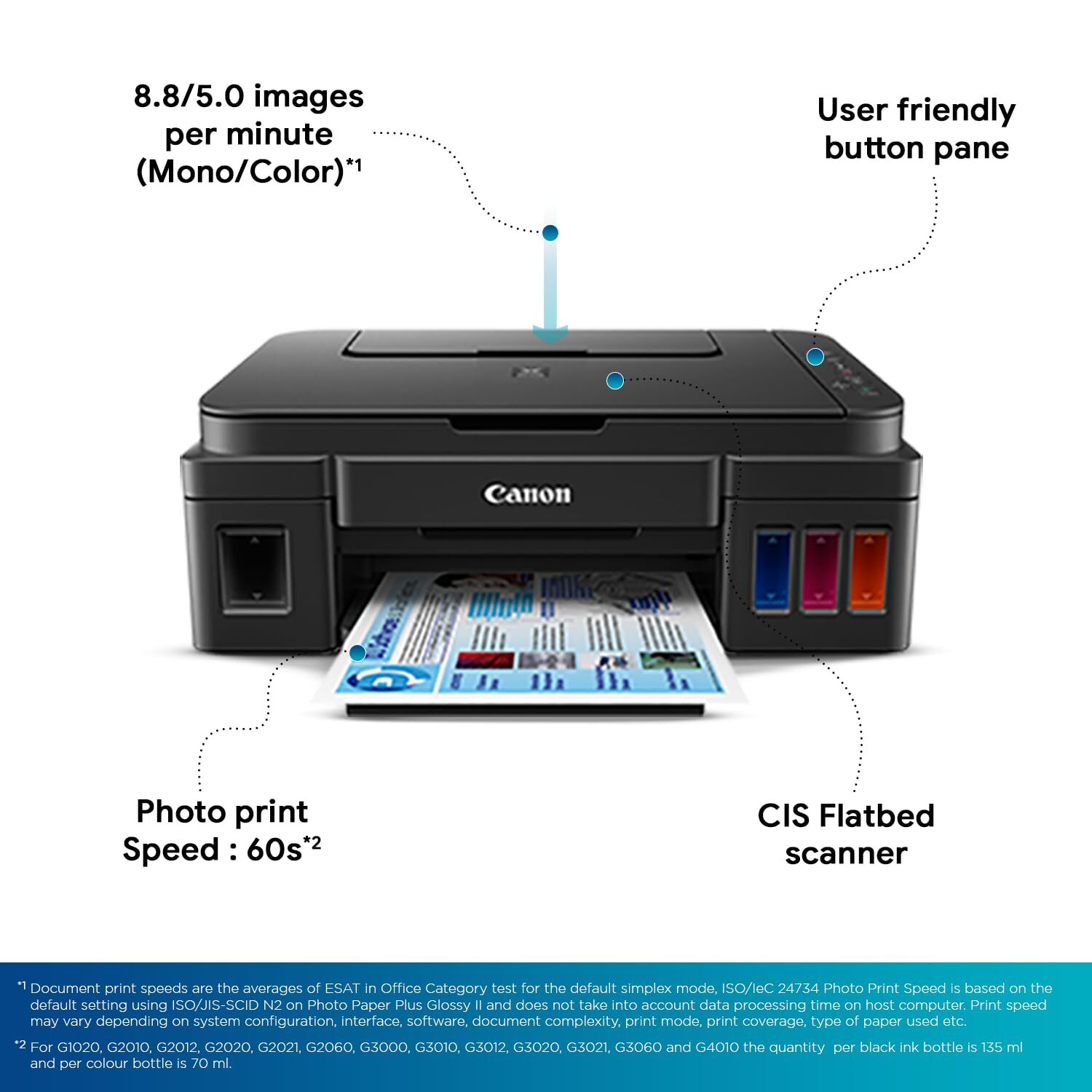
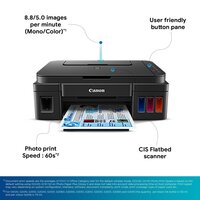
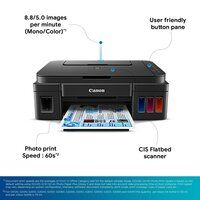
- 8.8 ipm
- 10% 80% RH (no condensation)
- ABS Plastic
- USB 2.0 High-Speed, Wi-Fi IEEE802.11b/g/n
- 5C - 35C
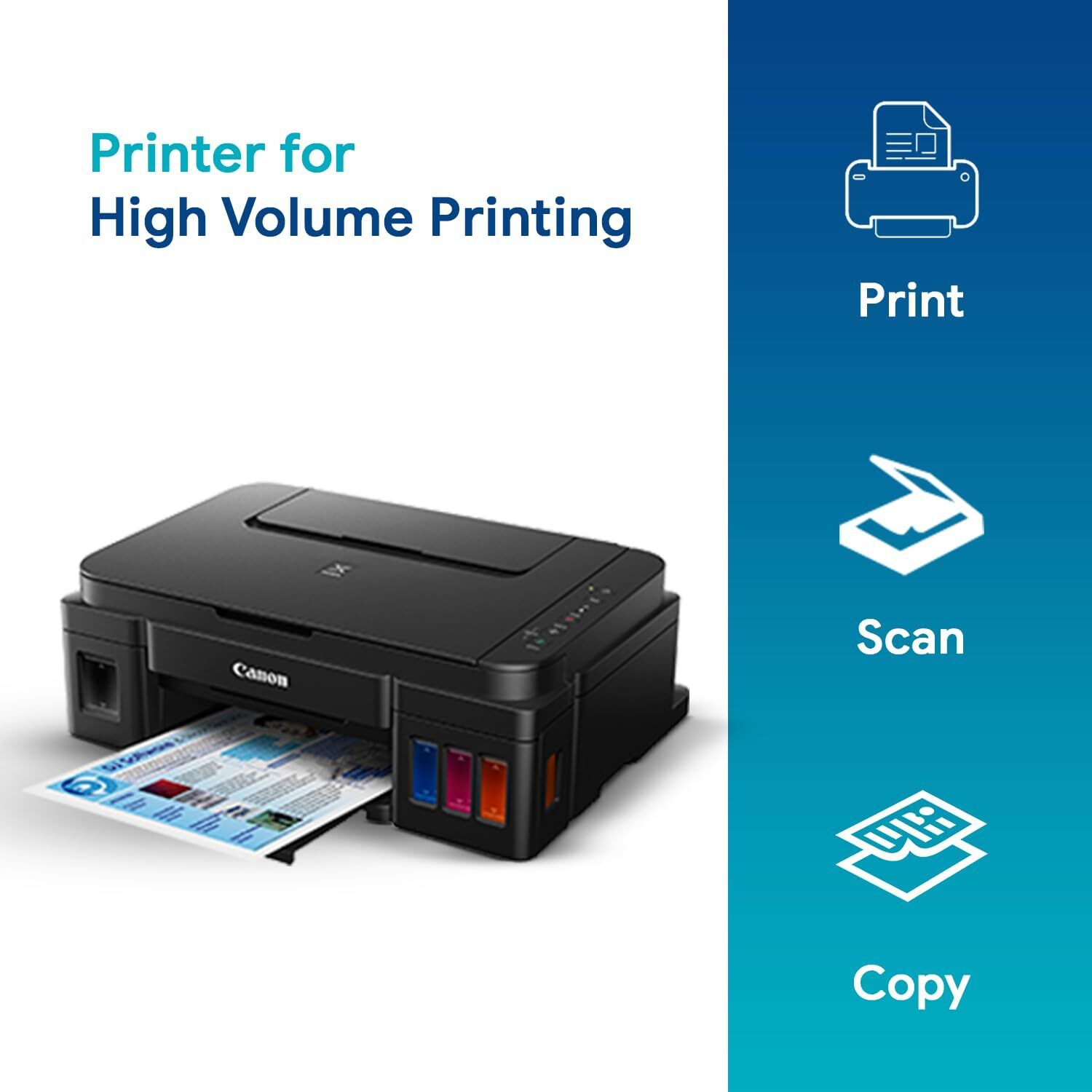
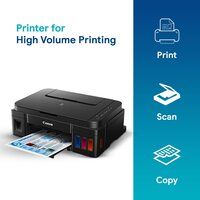
- Print, Scan, Copy
- Wireless Printing, Mobile Printing, Borderless Printing, High-Yield Ink Bottles
- 5.0 ipm
- Canon Proprietary
- 8.8 ipm (Black), 5.0 ipm (Color)
- Document and Photo Printing
- Home & Office
- 100 sheets (rear tray)
- Inkjet
- Approx. 0.6 W (standby), 11 W (printing)
- Up to 3,000 pages/month
- Dye (Color), Pigment (Black)
- No
- Canon PRINT app, Google Cloud Print, Apple AirPrint, Mopria
- GI-790 (Black, Cyan, Magenta, Yellow)
- Yes (Wi-Fi)
- 600 x 1200 dpi
- Flatbed CIS
- Windows, MacOS
- 24 seconds (sFCOT), 2.5 ipm (sESAT)
- Approx. 17 seconds (black)
- Black: Up to 6,000 pages, Color: Up to 7,000 pages
Product Description
High Page Yield Ink Bottles-With high page yield ink bottles 7 000 pages, users can enjoy printing without having to worry about cost of ink, or ink supplies running low.
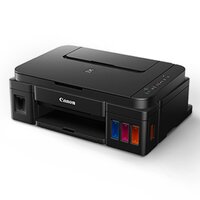
Integrated Ink Tank System-Built-in integrated ink tanks create a compact printer body. Users can also view remaining ink levels easily at a glance.
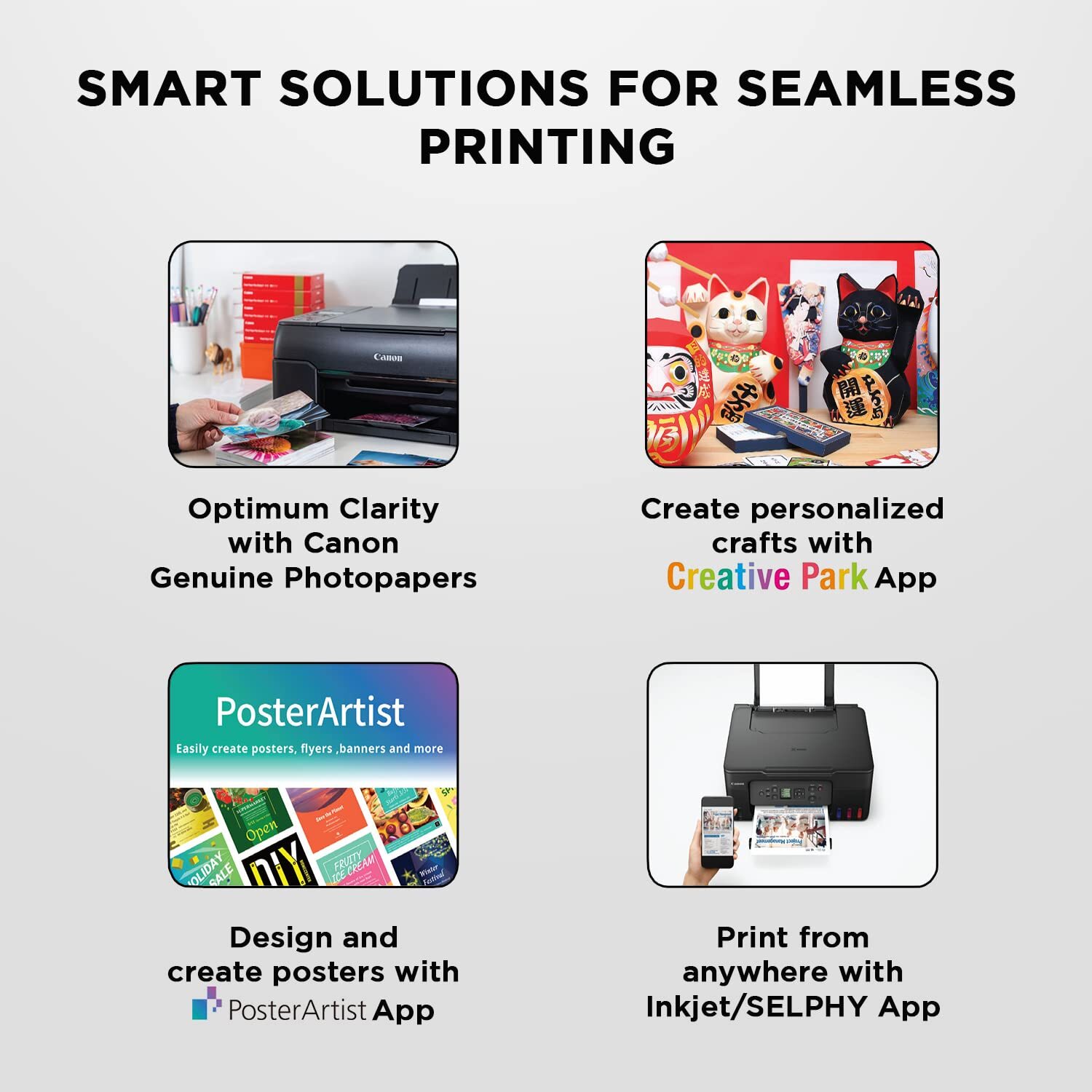
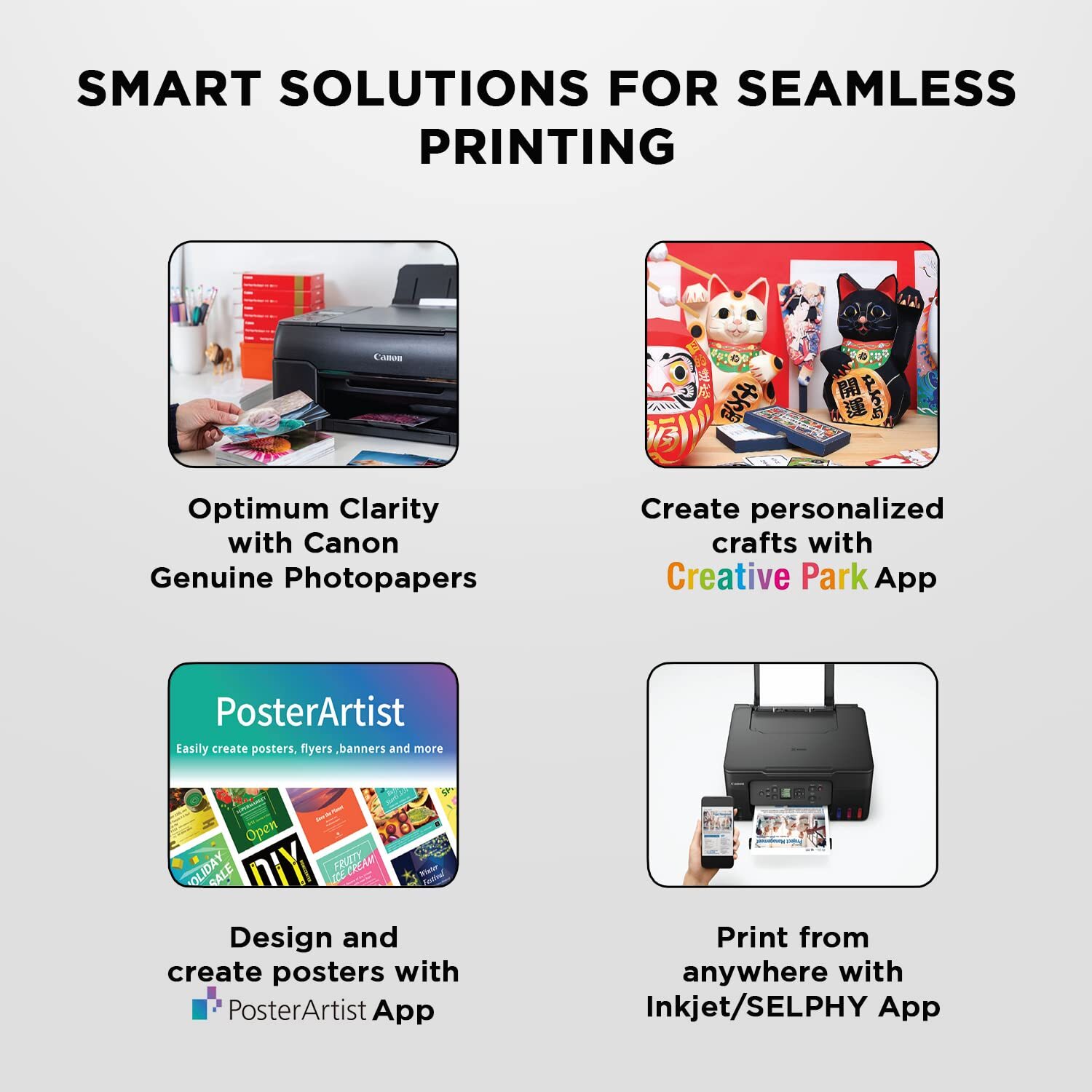
Quality Photo and Document Printing-Borderless photos can be printed up to A4 size, and Canons Hybrid ink system is equally adept at producing crisp black text documents and stunning photos.
Wireless LAN-Built-in wireless LAN connectivity allows users to print wirelessly from PCs, laptops, mobile phones and tablet computers.
Access Point Mode-The G3000 can behave as an access point in the absence of a wireless router, allowing a direct connection to be established to mobile phones and tablet PCs.
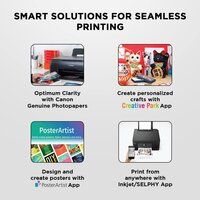
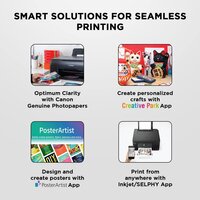
Mobile and Cloud Printing-The new Canon PRINT Inkjet/SELPHY app supports easy, guided printing from mobile phones and tablet PCs. Also supports printing from cloud services such as Facebook and Dropbox via PIXMA Cloud Link.
Wireless & Mobile Printing Made Simple
Experience hassle-free printing with the PIXMA G3000s Wi-Fi connectivity, allowing you to print directly from your smartphone, tablet, or laptop. This printer supports multiple mobile print solutions including Canon PRINT app, Google Cloud Print, Mopria, and Apple AirPrint, ensuring you can print and scan from nearly any device at home or in the office.
High-Yield, Cost-Efficient Ink System
Equipped with refillable GI-790 ink bottles, the PIXMA G3000 delivers exceptionally high page yieldsup to 6,000 pages in black and 7,000 in color (A4). Its efficient ink system reduces printing costs, making it ideal for users with heavy printing demands and those seeking long-term savings on consumables.
Reliable Performance for Multiple Functions
The G3000 is built for more than just printing. Its flatbed CIS scanner produces clear scans at 600 x 1200 dpi, and its copy function is prompt and dependable. Compact in design, it fits comfortably in home or workplace settings while supporting up to 100 sheets in the rear tray and maintaining a modest noise level of about 53 dB(A).
FAQs of PIXMA G3000 PRINTER:
Q: How do I connect the PIXMA G3000 printer to my Wi-Fi network?
A: Begin by pressing the Wi-Fi button on your printer until the Wi-Fi lamp flashes. Use the Canon PRINT app or the printer software on your computer to detect your network and follow the on-screen prompts to complete the wireless setup.Q: What mobile printing options does the PIXMA G3000 support?
A: The PIXMA G3000 is compatible with the Canon PRINT app, Google Cloud Print, Apple AirPrint, and Mopria. This enables you to print and scan wirelessly from most smartphones and tablets, providing convenient access to all printer functions remotely.Q: When should I refill the ink tanks or replace cartridges?
A: You should refill the ink tanks once the ink level indicators show they are running low, or print quality declines. The printer uses high-yield GI-790 bottles for black, cyan, magenta, and yellow. Follow the on-screen prompts or check visually to maintain optimal printing performance.Q: Where can the PIXMA G3000 be used, and what are its main applications?
A: Designed for both home and office environments, the PIXMA G3000 handles documents and photo printing efficiently. Its wireless features and compact size make it suitable for desktops, shared workspaces, or small offices across India.Q: What types of documents and paper sizes can I print with this model?
A: You can print standard A4 documents, photos, and borderless prints using the rear tray, which supports up to 100 sheets. The high-resolution output of 4800 x 1200 dpi ensures sharp text and vibrant images for various printing needs.Q: How does using high-yield ink bottles benefit me?
A: High-yield GI-790 ink bottles offer up to 6,000 pages in black and 7,000 in color, minimizing the frequency of refills and significantly lowering the cost per page. This is particularly beneficial for users with high monthly print volumes.Q: What should I do if I experience print quality issues?
A: If your prints show streaks or faded colors, perform a print head cleaning or deep cleaning using the printer software. Ensure the ink tanks are sufficiently filled and use genuine Canon ink for best results.
Price:
- 50
- 100
- 200
- 250
- 500
- 1000+

Other Products in 'Ink Tank Printer' category


Developed and Managed by Infocom Network Private Limited.